Inside the Workspace · Updated October 6, 2026
Can I design a PDF online with a drag-and-drop editor?
Short answer
Yes — open Canvas Mode in the right panel and design on real PDF pages. Drop in text, images, shapes, lines, tables, charts, QR codes, and form fields; start from one of 180+ templates; apply your saved brand kit; draft or restyle with AI; then resize for print or social. Because you are designing inside a PDF editor, the result is a working PDF — it can carry fillable fields and signatures, share as a tracked link, and convert to Word, PowerPoint, or Excel.
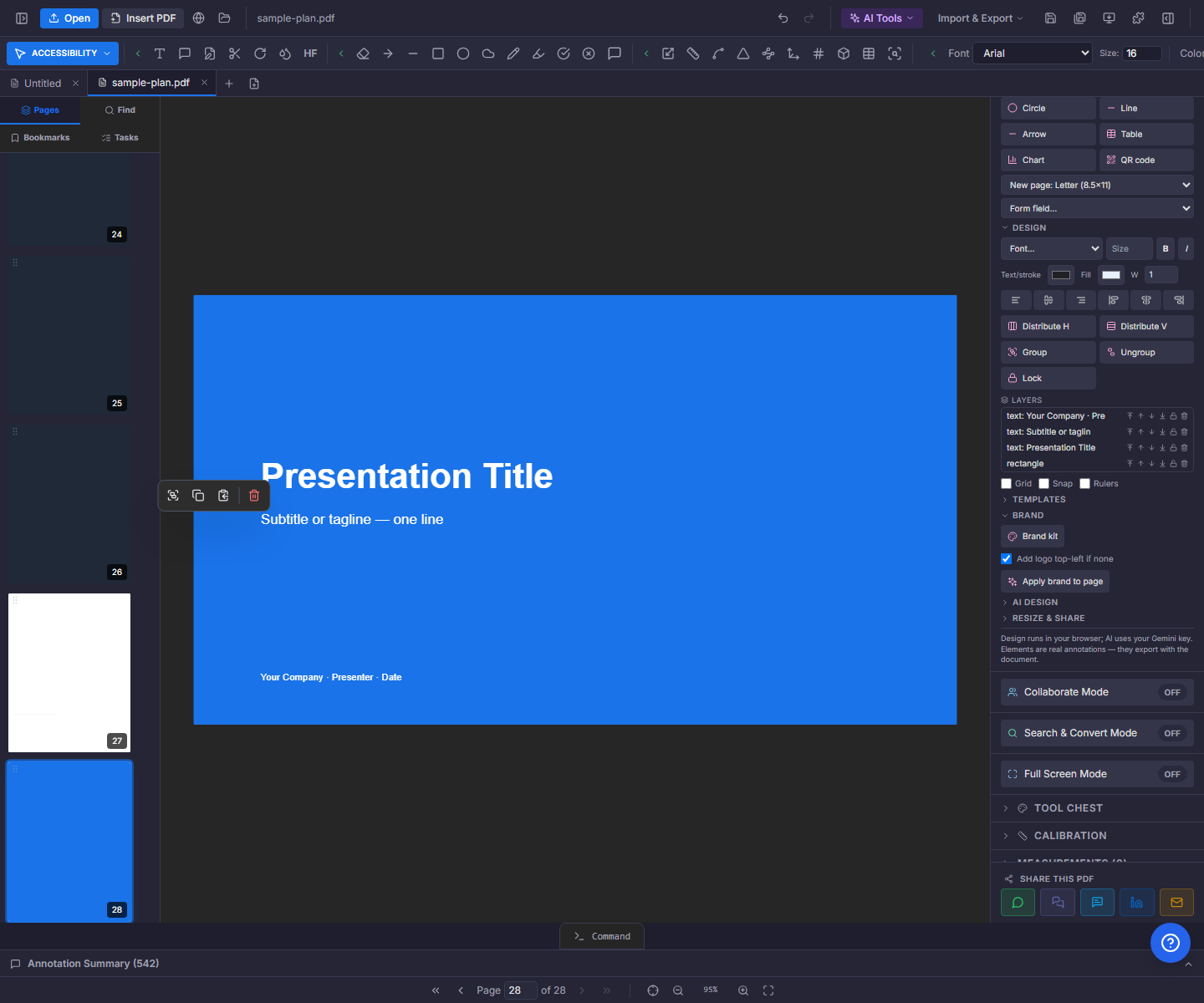
A design studio inside the PDF editor
Canvas Mode is a toggle in the editor’s right panel, not a separate app. "New Canvas" offers eight preset page sizes — Letter, A4, Legal, 11×17 tabloid, 16:9 presentation, business card, and square or story social formats. With no file open it starts a fresh document; with a document open it appends a designed page to it, which is how a branded cover lands on an existing report.
Elements drop in from the Create grid: text, an image from file, rectangle, circle, line, and arrow — plus dialog-driven elements for a table, a chart, a QR code, and a Smart Forms field picker covering text fields, checkboxes, radios, dropdowns, dates, signatures, initials, file uploads, numbers, and emails.
Type, layout, and layers
Select any element and the Design section opens up: font family (the three PDF-standard faces — Helvetica, Times, Courier — which render identically in every viewer), size, bold and italic, text and fill colors, and stroke width. Align a selection to any edge (a single element aligns to the page), distribute three or more elements with even gaps, group and ungroup, and lock finished pieces against accidental drags.
A layers list shows every element on the page with bring-forward, send-back, lock, and delete controls, and grid, snap, and rulers keep placement honest. Everything you place is a real PDF annotation — it exports, prints, and shares with the document.
Start from a template, not a blank page
The built-in library ships more than 180 layouts across business, marketing, social, events, forms, real estate, construction, education, hospitality, and a dozen other categories — resumes, invoices, proposals, contracts, letterhead, flyers, menus, certificates, signage, and multi-page kits. Placeholders like {{brand.name}} resolve against your saved brand kit on apply, so a template lands already wearing your logo, colors, and name.
The library grows two ways: "Save current page as template" freezes any page you designed for reuse, and "Create from PDF" converts an existing page’s text into editable elements over a kept background image or a blank page. A GIFs category holds animated templates that open in GIF Studio — edit headline, subtext, colors, size, frame rate, and duration with a live preview, then download the .gif. And a built-in print shop stocks premade designs for business cards, invitations, flyers, brochures, labels, stickers, posters, and merch, with live pricing and ordering.
Brand kit and AI design
The brand kit stores your company name, logo, five colors, and heading/body fonts — saved in your browser’s local storage, not the cloud. "Apply brand to page" restyles the open page in one pass: headings take the heading font and primary color, body text the body font, shapes the primary/secondary pair, and your logo lands top-left if the page has none.
AI Design runs on your own Gemini key and always proposes before it changes anything: create a page from a text description, redesign the current page, rewrite selected copy, or translate elements — or append a fully translated copy of the page. Every request returns a plan of operations with per-item checkboxes, and nothing changes until you press "Apply suggested changes".
Resize once, publish everywhere
Magic Resize & Share reflows what you designed into the formats it needs to be: Letter to A4 and back, portrait to landscape, three Letter pages onto a tri-fold brochure sheet with fold guides, a document into a 16:9 presentation, and an AI-built one-page executive summary of a long proposal. Social export renders the current page — or every page — at fifteen Instagram, Facebook, WhatsApp, and LinkedIn sizes as PNG downloads (zipped when there is more than one) or a sized PDF, and a GIF tab turns any page range into an animated GIF.
Every output opens in a new tab or downloads — the source document is never modified, so a flyer can spawn a story-sized post, a print-ready tri-fold, and an animated teaser without touching the original.
The part a design file can’t do — this stays a PDF
A drag-and-drop canvas in a graphics app produces an image file; this one produces a document. The form-field picker drops real fields that export as fillable AcroForm widgets — your invoice template becomes a form the client types into. Signature fields and certificate-based digital signing are built in, so the certificate you designed can be cryptographically signed and locked in the same session.
Sharing is document-grade too: a smart link publishes the PDF to a public URL with optional password, expiry, and email gate, then reports views, unique viewers, time per page, downloads, and prints. Version history snapshots the work at named checkpoints you can restore or approve. And when someone needs the content elsewhere, the same file converts to Word, PowerPoint, or Excel — no re-typing, no export-then-import.
The whole thing runs free in the browser. Files stay on your device unless you deliberately share them; the AI sections are the exception, sending page content to Gemini under your own API key.
Doing it in PDFDepth
Open any PDF (or none) → right panel → Canvas Mode. Pick a template or a blank page size, drop in elements, style them, apply your brand kit, then use Resize & Share for the formats you need. Save as a PDF, share as a tracked link, or add form fields first and send a fillable document.
| You are making | Fastest start | What happens next in the editor |
|---|---|---|
| Invoice | Invoice template | Add Smart Form fields → client fills it in any PDF viewer → share by link |
| Flyer | Marketing template | Drop a QR code → Magic Resize exports social PNGs or a print PDF |
| Certificate | Certificate template | Place a signature field → certificate-sign → the file locks after signing |
| Restaurant menu | Hospitality template | Brand kit restyles it in one pass → QR code links to the live menu |
| Proposal | Proposal kit template | AI one-page summary for the cover → version snapshot → tracked smart link |
| Business card | Card-size canvas or print shop design | Design, then export the PDF or place a print order |
| Resume | Resume template | Edit text in place → share link shows you when it gets viewed |
Everything in this article runs in the live PDFDepth workspace — the same app the workflows above were verified against.
Key takeaways
- Canvas Mode designs real PDF pages — text, images, shapes, tables, charts, QR codes, and fillable form fields all export with the document.
- The library ships 180+ templates plus animated GIF templates, your own saved pages, and print-shop designs; brand placeholders resolve on apply.
- Magic Resize covers Letter↔A4, tri-fold brochures, 16:9 decks, AI one-page summaries, and 15 social sizes — outputs never touch the source file.
- The differentiator is downstream: fillable fields, signatures, tracked links, version history, and Word/PowerPoint/Excel conversion are built in.
Related questions
A real PDF. Design elements are true annotations and pages — text stays selectable, form fields export as AcroForm widgets, and the file converts to Office formats.
Do it in PDFDepth
In the app: Right panel → Canvas Mode
Try it free — no signup, no upload
Related articles
Put it into practice
Everything above runs inside the PDFDepth workspace — free for 14 days, no credit card.
Start for Free