Construction & Engineering · Updated October 6, 2026
How do I put inspection form fields on the plan sheets themselves?
Reviewed for technical accuracy by licensed professional engineers.
Short answer
Toggle Inspection Mode and its Forms panel lets you define custom fields — text, number, checkbox, or a dropdown with your own options — that then appear on every inspection task pin you drop on the plan; the same workspace’s AI Plan Review can check a Florida DOT set against the FDOT Standard Plans indexes the drawings reference.
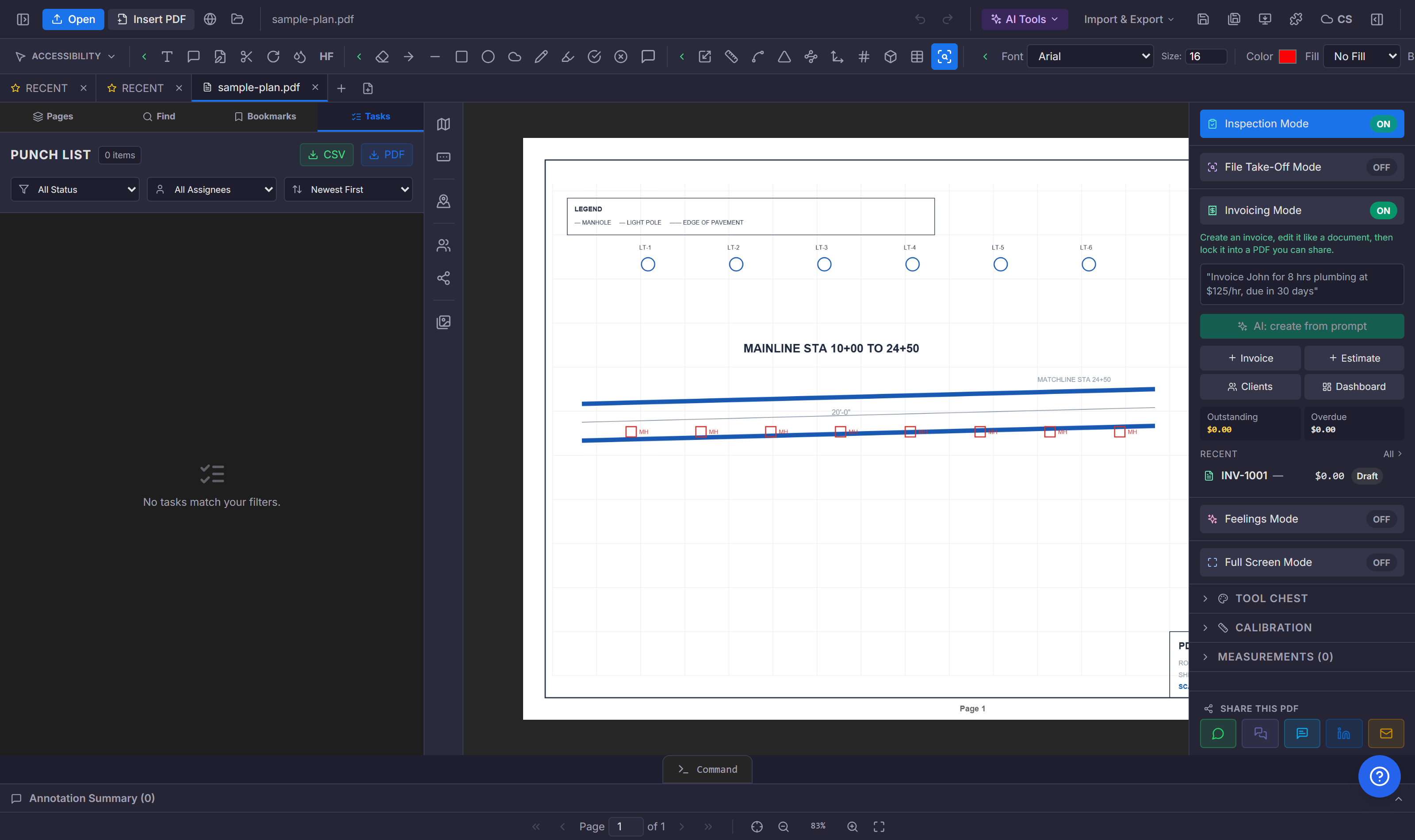
Forms that attach to pins, not spreadsheets
The Forms panel in the Inspection toolbar builds the form once: add a field with a label and a type — text, number, checkbox, or dropdown with comma-separated options. From then on, every Inspection Task pin you drop carries those fields in its dialog alongside status, priority, assignee, category, checklists, and photos. "Compaction test passed" as a dropdown, "pour number" as text — the data lives on the pin where the work is, not in a re-typed spreadsheet.
The inspection loop end to end
- Plans panel → open the project’s sheets as tabs.
- Drop Inspection Task pins where issues are; each pin takes your custom fields plus notes, photos, and assignment.
- Share the sheet by link so the crew’s pins sync to the same document.
- All Photos gathers every pin photo across the set; the task rollup compiles the pins into a report.
When the review needs the standard, not a summary of it
AI Plan Review carries an FDOT Standard Plans option built on the published indexes and SPIs: it detects which Standard Plans indexes the drawing text actually cites, reads the edition the general notes claim, pulls the relevant index and SPI "Plan Content Requirements" checklists, and checks the set against them — including flagging edition mismatches. Findings that cite an index get mechanically verified: the cited index must exist in the pack, and any quoted standard text must appear verbatim, or the finding is marked unverified for human check. A deterministic rule pack does the same job for IBC 2021 egress provisions — exact section citations, and "not stated on the drawing" reported honestly instead of guessed.
Doing it in PDFDepth
Right panel → Inspection Mode → the left-edge toolbar: Plans for sheets, Forms for your fields, the pin tool for tasks. For standards-aware review, run AI Plan Review and tick FDOT Standard Plans or pick the code and edition — unverifiable citations come back flagged rather than laundered into the report.
References
Everything in this article runs in the live PDFDepth workspace — the same app the workflows above were verified against.
Key takeaways
- Forms panel defines custom fields — text, number, checkbox, dropdown — once; every inspection pin then carries them.
- Pins hold status, assignee, photos, and checklists plus your fields — the form is on the plan.
- FDOT Standard Plans review checks cited indexes and SPI checklists, flags edition mismatches, and verifies quotes verbatim.
- IBC rule packs check exact provisions with section citations — indeterminate reported, never guessed.
Related questions
Fields are stamped onto each pin as it is created — define the form first, then pins dropped after carry those fields for filling.
Do it in PDFDepth
In the app: Right panel → Inspection Mode · AI Tools → Plan Review → FDOT Standard Plans
Try it free — no signup, no upload
Related articles
Put it into practice
Everything above runs inside the PDFDepth workspace — free for 14 days, no credit card.
Start for Free