Inside the Workspace · Updated October 6, 2026
What is Collaborate Mode in PDFDepth?
Short answer
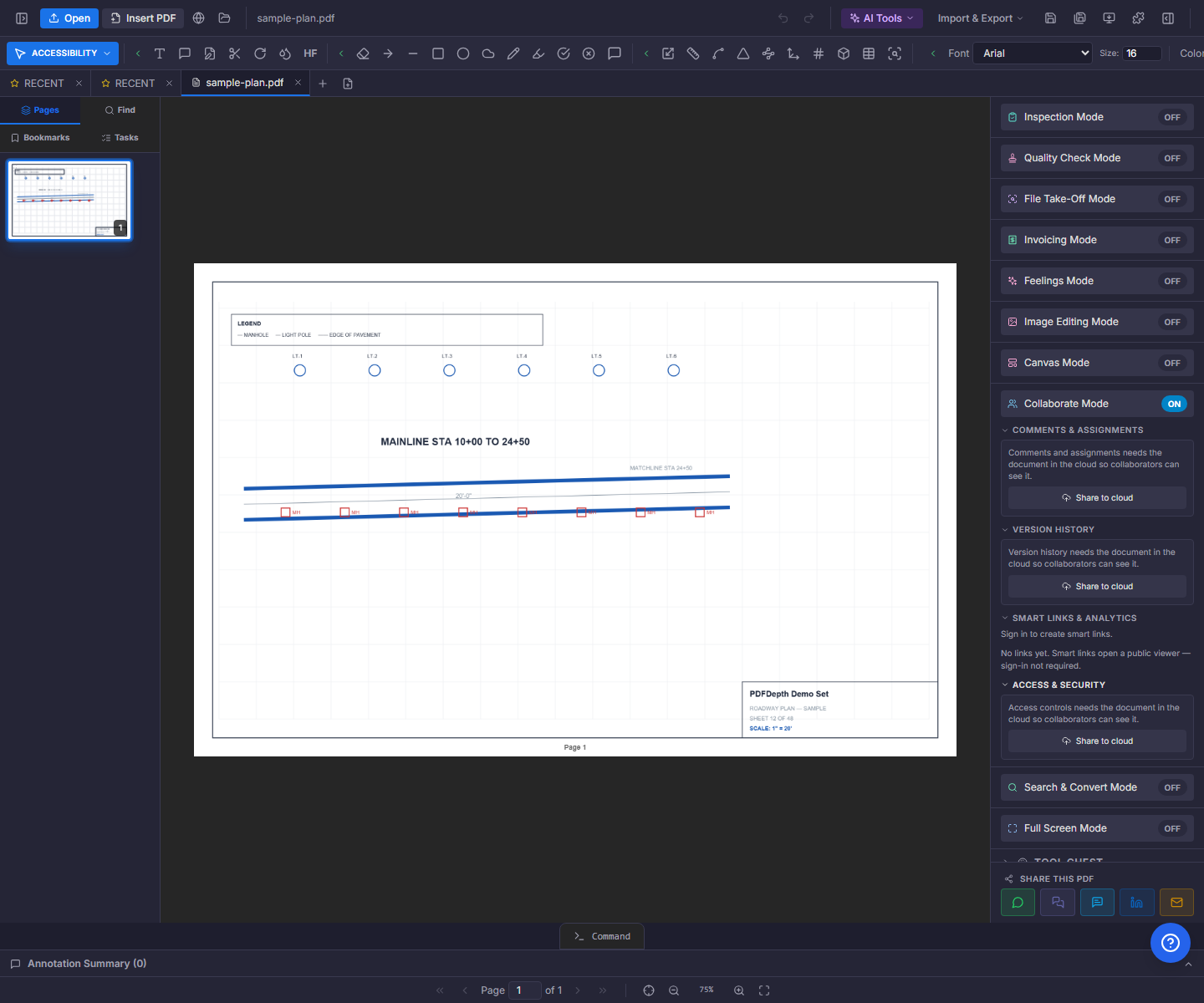
Collaborate Mode is a right-panel workspace for shared documents. It bundles comment pins and threads (with assignees, due dates, and @mentions), named version snapshots, smart links with viewer analytics, and role-based access — most of which activate once the document is shared to the cloud.
Comments & Assignments
Two ways to comment: "Comment on page" drops a numbered pin wherever you click on the sheet, and "Comment on object" anchors the thread to the element you have selected. Threads take replies and @mentions of the document’s members; the author, the assignee, or an owner/editor can resolve or reopen, and owners/editors can assign the comment to a member with a due date.
Five filters keep long threads usable — All, Open, Resolved, Assigned to me, and This page — and the mode button itself badges how many open items are assigned to you. Clicking a comment jumps to its page.
Version History
Named snapshots capture the PDF plus every annotation, measurement, calibration, and form field. Each version lists its author, timestamp, and annotation count; you can view it in a new tab, restore it (with a confirmation), or — as the owner — mark it approved.
Smart Links & Analytics
Smart links publish a standalone copy of the open PDF to a public /l/ URL — no account needed for recipients — with an optional password, expiry, email gate, and download/print switches. The panel then reports views, unique viewers, average time, downloads, prints, and seconds per page. It is the one section that does not require the document itself to be cloud-shared.
Access & Security
The owner controls who the collaboration link reaches: link access ranges from disabled through view-only and view-plus-comment to view-plus-edit. Members are listed by name with roles — editor, commenter, viewer — that can be changed or removed, new members are invited by email, and a lock toggle freezes editing on the whole document. Everyone sees their own role at the top of the panel.
Local vs cloud — the honest split
Comments, versions, and access controls need the document in the cloud so collaborators and members can reach it; on a local file those sections show a "Share to cloud" button that runs the normal share flow first. Smart links are the exception — they upload a standalone copy of whatever is open, so they work even when the document itself is not shared. Assignments and mentions live in-app; there is no separate email-notification layer to configure.
Everything in this article runs in the live PDFDepth workspace — the same app the workflows above were verified against.
Key takeaways
- Comment pins drop on the page or anchor to a selected object; threads support replies and @mentions.
- Assignees, due dates, and five filters turn a comment list into a tracked work queue.
- Version snapshots capture the PDF plus all markups — viewable, restorable, and approvable.
- Smart links share a standalone copy publicly; the rest of the panel needs the doc shared to cloud.
Related questions
For comments, versions, and access control, yes — members sign in and take a role. Smart-link recipients need nothing: the public viewer works without a login.
Do it in PDFDepth
In the app: Right panel → Collaborate Mode
Try it free — no signup, no upload
Related articles
Put it into practice
Everything above runs inside the PDFDepth workspace — free for 14 days, no credit card.
Start for Free