Construction & Engineering · Updated October 6, 2026
How do I manage a whole plan set — sheets, revisions, reviews — in one place?
Reviewed for technical accuracy by licensed professional engineers.
Short answer
PDFDepth’s project dashboard keeps a plan set as a first-class object: upload sheets to a project, open any of them as tabs in the editor, share a sheet by collaboration link, see every task photo and AI review finding across the set, and run folder-wide operations — sync scale, master takeoff, plan check, slipsheet compare — from the command line.
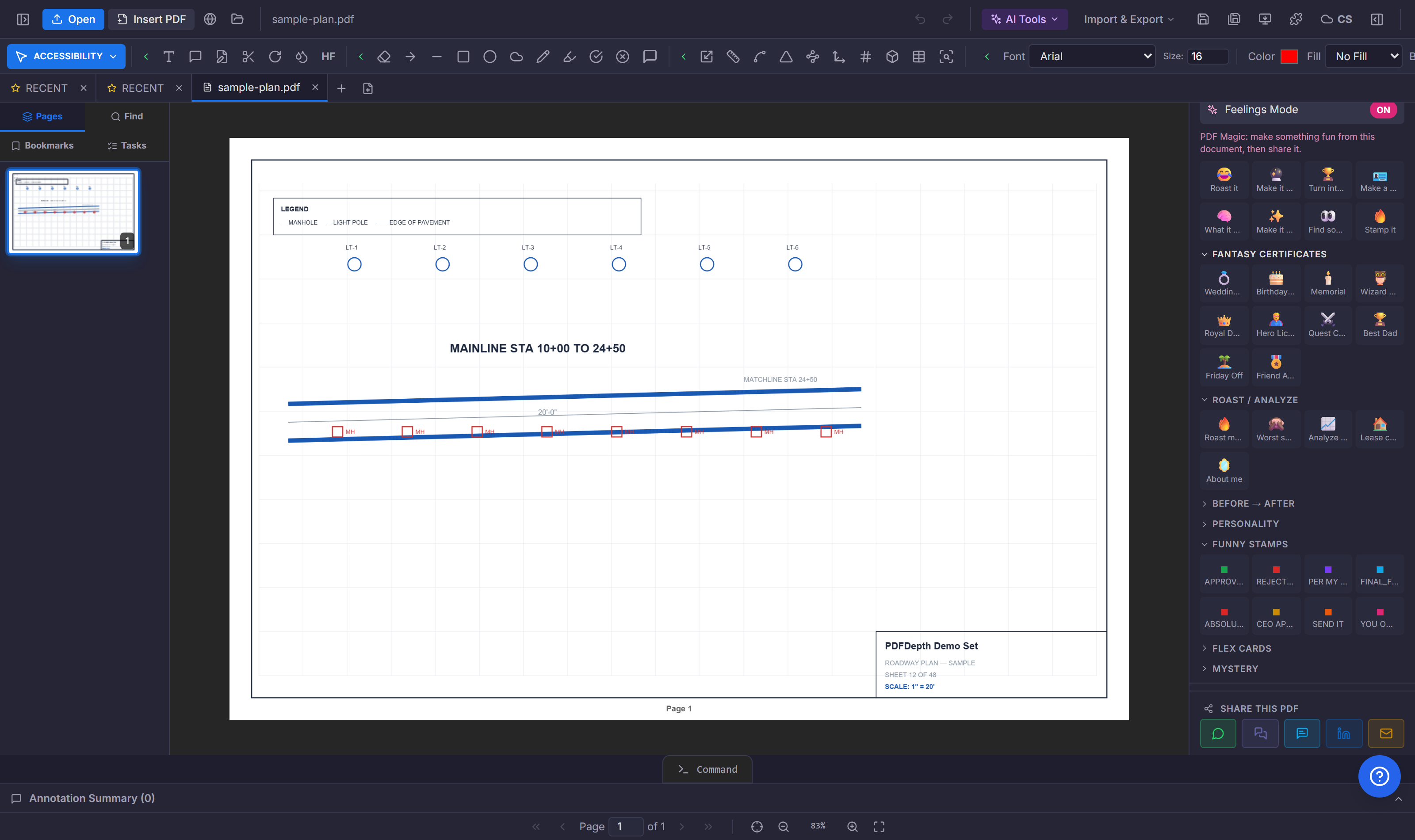
The project dashboard
The folder icon in the header opens a dashboard tab: create, rename, and delete projects, then upload plan sheets to the one you are working. Each sheet lists its page count, size, and upload date — the set stays a set instead of a pile of loose files.
Sheets that open and share as documents
Open drops a sheet into the editor as a tab bound to its project — measure, mark up, and pin tasks on it like any document. Share creates a collaboration link for that sheet specifically: reviewers join through the URL and their markups and pins sync to the shared document, so a sheet sent to the field and a sheet on your desk are the same file, not emailed copies.
Everything the set produces, aggregated
- Task Photos — every photo attached to inspection-task pins across the project’s open sheets, sortable by date, assignee, category, task, page, or sheet.
- AI Plan Comments — findings saved by plan-review runs, filterable by severity, category, and status, and grouped by the revision they were filed against.
- Status that moves — a finding still present in the next review run flags still-not-fixed; one that disappears marks resolved.
Set-wide operations from the command line
Open a set of sheets as tabs and the FOLDER: namespace treats them as one job: SCALE_SYNC applies a verified calibration across every sheet, TAKEOFF_REPORT aggregates all measurements into a master CSV, PLAN_CHECK reviews the set, SLIPSHEET compares revisions, plus batch flatten, DXF conversion, title-block auto-naming, preflight, and submittal-log extraction. The things that take an afternoon per sheet take a command per set.
Where the data lives
Projects, sheets, and review findings live in your cloud workspace — this is the one workflow built around stored documents rather than files that stay purely local. Tabs still do the day-to-day work in the browser; the dashboard is what makes the set cohere between sessions and people.
Doing it in PDFDepth
Header → folder icon opens the dashboard. Upload sheets to a project, open them as tabs, share the ones going out for review, and run the FOLDER: commands from the command line (Ctrl+9) when an operation should hit every sheet at once.
References
Everything in this article runs in the live PDFDepth workspace — the same app the workflows above were verified against.
Key takeaways
- A project holds the plan set: sheets upload once and open as tabs bound to the project.
- Per-sheet share links turn a sheet into a live shared document — one file, many reviewers.
- Task photos and AI review findings aggregate across the set, tracked per revision with status.
- FOLDER: commands run set-wide jobs — scale sync, master takeoff, plan check, slipsheet, and more.
Related questions
It is closer to a workspace: sheets are uploaded documents that open as tabs, carry their own markups and review findings, and share individually by link.
Do it in PDFDepth
In the app: Header → Open Projects (folder icon) · command line → FOLDER: commands (Ctrl+9)
Try it free — no signup, no upload
Related articles
Put it into practice
Everything above runs inside the PDFDepth workspace — free for 14 days, no credit card.
Start for Free