Construction & Engineering · Updated October 6, 2026
How do you compare two versions of a construction drawing?
Reviewed for technical accuracy by licensed professional engineers.
Short answer
Construction drawing comparison means overlaying or diffing two versions of the same sheet to catch every change — moved walls, added callouts, revised dimensions. PDFDepth offers three ways: a synced side-by-side view where both sheets scroll and zoom together, a vector diff overlay that colors added and removed linework, and slip-sheeting, which swaps a revised page under the existing markups so nothing is lost.
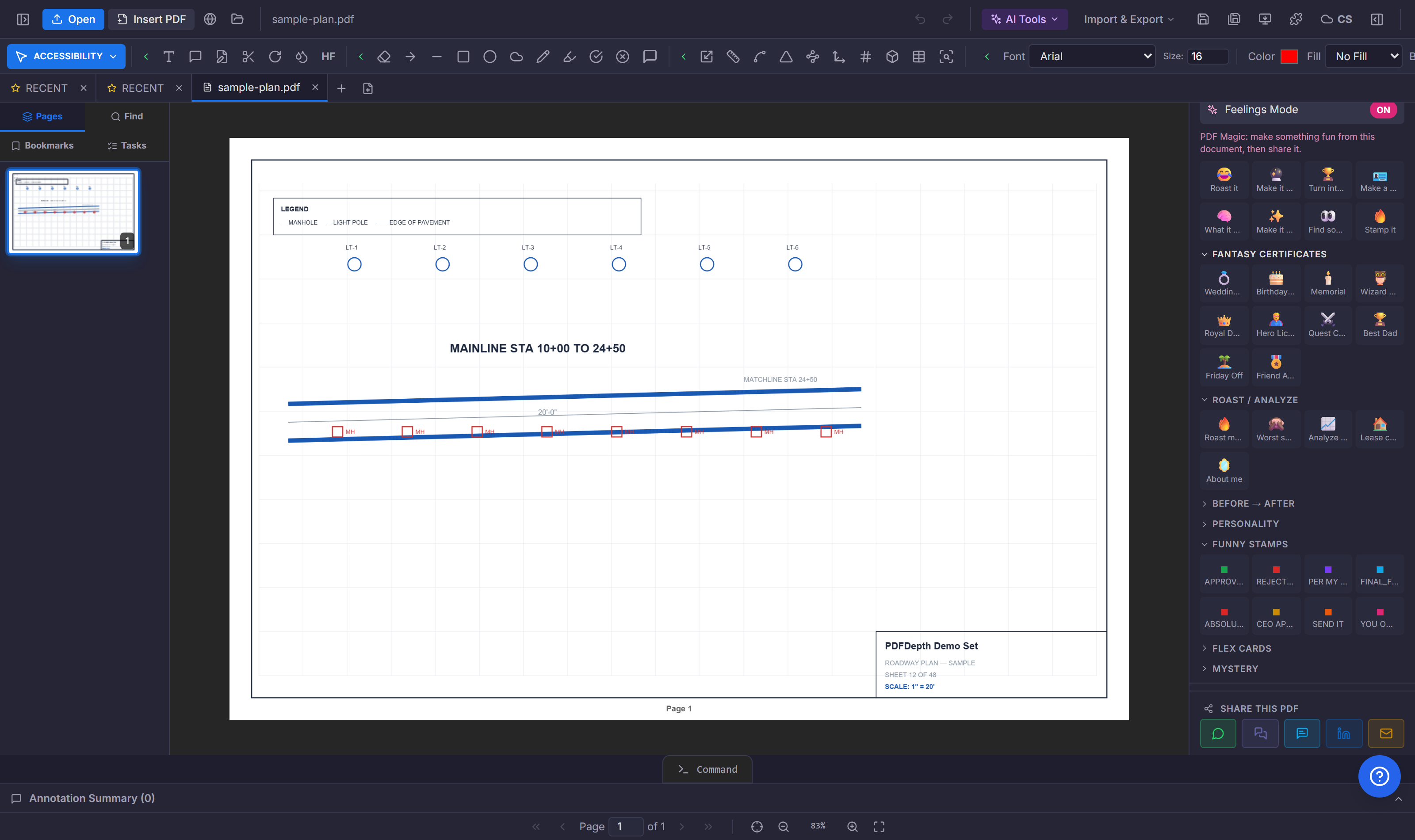
Side-by-side, synced
The simplest comparison is two windows that stay in lockstep. Open the old and new revision side by side; scrolling and zooming one moves the other, so a wall that shifted three feet is visible the moment the views align. This is the fastest way to sanity-check a revision before you rely on a diff.
Vector diff overlay
For a precise answer, run the vector diff: the two versions are overlaid and every linework change is recolored — added lines in one color, removed in another. What changed is visible at a glance, at any zoom, without scanning the sheet by eye. The diff lives on the drawing, so the marked-up overlay can be shared as the review record.
Slip-sheet a revised page
The problem with a resubmittal is that the new sheet arrives with no markups on it. Slip-sheeting solves this: swap the revised page into the document under the existing markups, so your clouds, pins, and notes from the old revision stay in place on the new sheet. Add a dashed diff box to show where the change is, and the review trail is continuous.
Version history as the audit trail
Comparison only helps if you can get back. Save a named version before every resubmittal, and the history shows who approved what and when. Any version opens in a new tab for a side-by-side against the current revision — the compare view and the version history are the same audit trail, seen from two angles.
References
Everything in this article runs in the live PDFDepth workspace — the same app the workflows above were verified against.
Key takeaways
- Synced side-by-side view keeps both revisions in lockstep for a fast visual check.
- Vector diff recolors added and removed linework at any zoom.
- Slip-sheet swaps a revised page under existing markups — nothing is lost.
- Save a named version before every resubmittal; the history is the audit trail.
Related questions
Swapping a revised drawing page into the document under the markups from the previous revision — so your comments and annotations carry forward instead of starting over on a blank new sheet.
Do it in PDFDepth
In the app: Right panel → Collaborate Mode → Version History
Try it free — no signup, no upload
Related articles
Put it into practice
Everything above runs inside the PDFDepth workspace — free for 14 days, no credit card.
Start for Free