Construction & Engineering · Updated October 12, 2026
How do I run a QC review on a plan set in PDFDepth?
Reviewed for technical accuracy by licensed professional engineers.
Short answer
Open the plan set, toggle Quality Check Mode on in the right panel, and PDFDepth drops a QC stamp on page 1 and gives you a share link. Assign each of the five stages — Origination, Checked, Concurrence, Changes Made, Changes Verified — to a reviewer, then sign each stage off with initials and a date while markups stay locked to that stage’s ink colors.
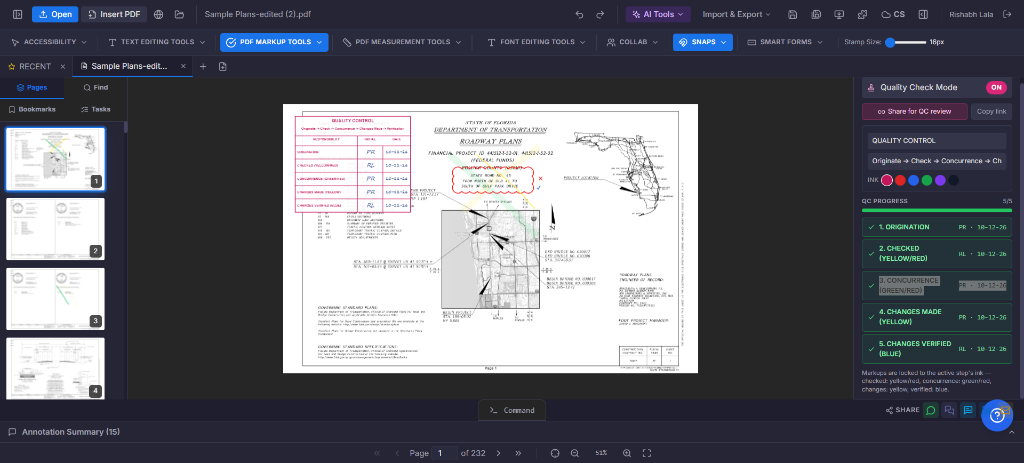
Step 1 — Open the set and enable Quality Check Mode
Open your plan set in the workspace and flip on Quality Check Mode in the right-hand modes panel. The first time you enable it, two things happen: a QC stamp is placed on page 1 of the document, and the share dialog opens so the review can reach the rest of the team.
Step 2 — Share the set for review
Use "Share for QC review" to send the collaboration link (or "Copy link" to paste it wherever the team works). Everyone who opens the link sees the same document and the same stamp — there is no separate review copy to reconcile later. The stamp is a synced annotation, so sign-offs appear live for anyone with the set open.
Step 3 — Configure the stamp and assign the stages
Set your company name and the stamp subtitle, pick the ink, then assign each stage to its reviewer by initials. Only the assigned reviewer — or the stamp owner — can sign a stage off, and stages unlock in order, so nobody can verify changes that haven’t been made yet.
- Origination — the originator assembles the plans; any markup color allowed.
- Checked — the checker marks correct work in yellow and flags problems in red.
- Concurrence — the concurring reviewer agrees in green or disagrees in red.
- Changes Made — the originator highlights each revision in yellow.
- Changes Verified — a different person confirms each change in blue.
Step 4 — Work the chain
While a stage is active, every new markup — clouds, highlights, text notes, pins — is automatically forced into that stage’s ink, so the color discipline holds even when someone forgets. Reviewers mark up in context on the sheets, then sign their stage with initials and a date to unlock the next row of the stamp.
The QC progress panel shows the state of all five stages at a glance, which is where a manager checks where the set sits without asking anyone.
Step 5 — Finish and keep the record
When Changes Verified is signed, the chain is complete and the stamp on page 1 holds the full record — who checked, who concurred, who changed, who verified, and when. The stamp flattens into the exported PDF like any other annotation, so the review record travels with the plan set.
One honest caveat: the stamp records the review — it does not certify the design. QC Mode supports your process; the responsible engineer still decides what the markups mean.
References
Everything in this article runs in the live PDFDepth workspace — the same app the workflows above were verified against.
Key takeaways
- One toggle stamps page 1 and opens sharing — the review lives on the document itself.
- Assign each stage by initials; stages unlock in order and only the assignee can sign.
- Ink colors are enforced per stage — reviewers can’t accidentally markup in the wrong color.
- The finished stamp is the review record: five stages, initials, and dates, flattened into the PDF.
Related questions
Yes — assign multiple stages to the same initials. The chain still runs in order; it just records the same reviewer on more than one row.
Do it in PDFDepth
In the app: Right panel → Quality Check Mode
Try it free — no signup, no upload
Related articles
Put it into practice
Everything above runs inside the PDFDepth workspace — free for 14 days, no credit card.
Start for Free