Construction & Engineering · Updated October 6, 2026
What do Smart Trace, Smart Overlay, and predictive snapping do in PDFDepth?
Reviewed for technical accuracy by licensed professional engineers.
Short answer
Three assists live in the Snaps area of the toolbar: Smart Ortho Snap straightens any drawn segment that lands within about 15° of horizontal or vertical, OSNAP (F3) snaps click points to the PDF’s own vector linework, and hover prediction highlights element regions detected on the page — click one and it becomes an area measurement. A fourth, Smart Overlay, recolors the linework a cut lifts so it can be pasted back as a transparent overlay.
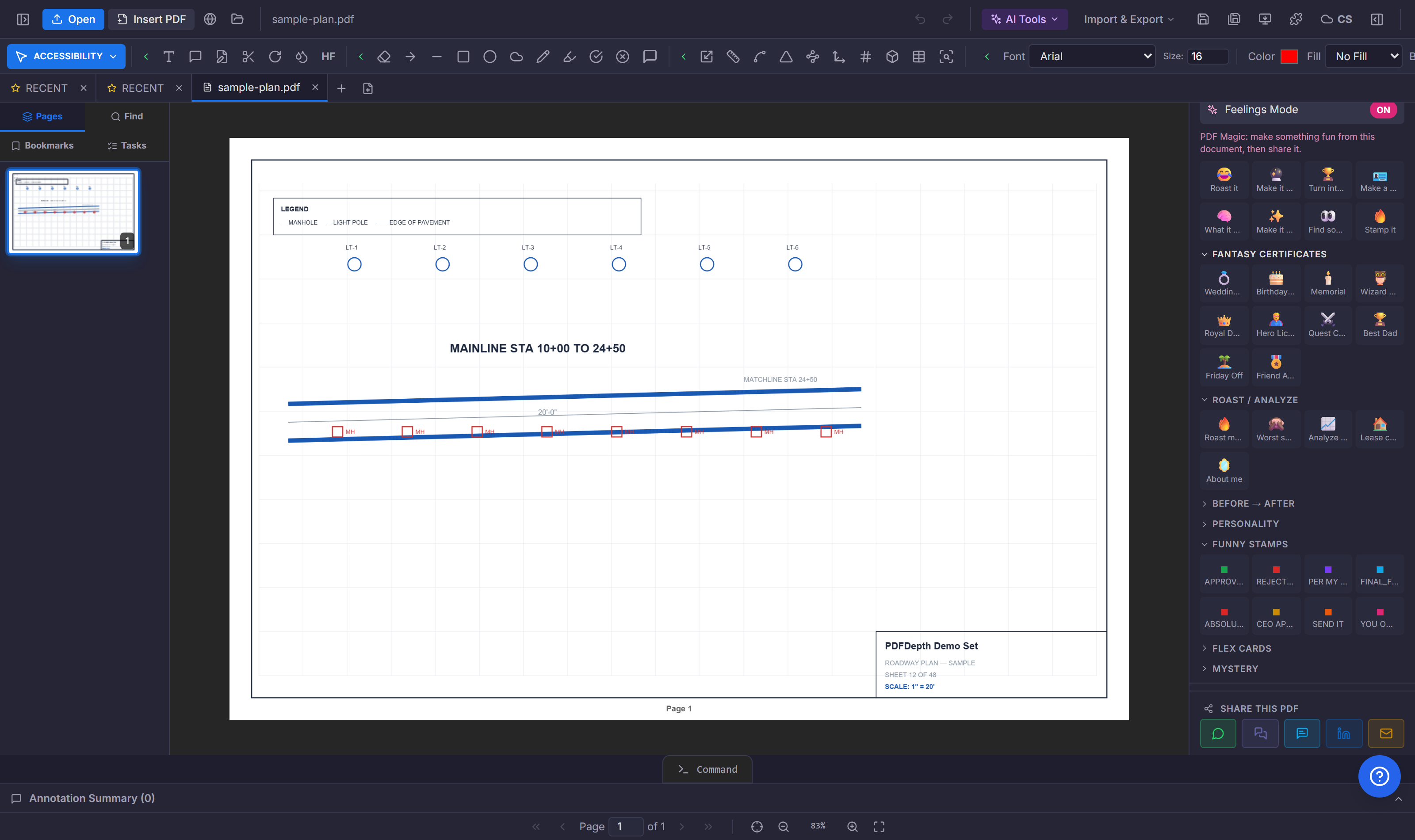
Smart Ortho Snap — freehand that comes out square
With the magnet toggle on, every segment you draw — lines, arrows, freehand strokes, rectangles, polylines, perimeters — is checked as it lands: if it falls within roughly 15° of horizontal or vertical, it snaps to a perfectly square angle; deliberate diagonals pass through untouched. It works live in the CAD command line too (LINE, PLINE, ARROW) and in the rubber-band previews, so what you see is what lands. When it is off, holding Shift still hard-locks a segment to the axis.
OSNAP — snapping to the sheet’s own linework
F3 toggles object snapping onto the page’s vector geometry: clicks within a zoom-scaled radius grab the closest point on the nearest drawn segment — real endpoints and edges of the PDF linework — and fall back to the raw point when nothing is near. On dense drawings it is the difference between a dimension that starts exactly on the wall line and one that starts near it.
Hover prediction — detected regions that measure on click
Identify Elements (BIM) scans the page and leaves detected regions — walls, rooms, ducts, and similar — as color-coded dashed overlays when prediction is on. Hovering highlights a region and shows its label; clicking converts that exact boundary into an area measurement annotation. What would be a careful manual trace becomes a confirm-the-detection click.
Smart Overlay — lifting and recoloring linework
The cut tool lifts a region off the page at high resolution: the dominant background is detected and made transparent automatically, so what remains is the linework itself. The Edit Overlay Colors dialog then lists the detected linework colors and remaps any of them — black work to red, say — with an optional background fill, before the overlay is copied or pasted back as a movable, re-editable image annotation. Revised detail over existing context: the overlay floats above the sheet until you flatten it.
Doing it in PDFDepth
Snaps group in the toolbar → magnet for Smart Ortho Snap, sparkles for prediction; F3 anywhere for OSNAP. AI Tools → Engineering → Identify Elements (BIM) produces the detected regions prediction lights up. For overlays, take the cut tool, cut the region, adjust colors in the editor that opens, then Ctrl+V where it belongs.
Everything in this article runs in the live PDFDepth workspace — the same app the workflows above were verified against.
Key takeaways
- Smart Ortho Snap squares any segment within ~15° of H/V automatically — diagonals stay diagonal.
- OSNAP (F3) snaps points to the PDF’s own vector linework within a zoom-scaled radius.
- Identified element regions highlight on hover and convert to area measurements on click.
- Cut lifts linework with a transparent background; the color editor remaps it before pasting back as an overlay.
Related questions
No — only segments within about 15° of an axis are squared; anything intentionally diagonal passes through unchanged, and Shift still locks to the axis when the toggle is off.
Do it in PDFDepth
In the app: Toolbar → Snaps group (ortho snap + prediction) · F3 for OSNAP · AI Tools → Engineering → Identify Elements (BIM)
Try it free — no signup, no upload
Related articles
Put it into practice
Everything above runs inside the PDFDepth workspace — free for 14 days, no credit card.
Start for Free