Inside the Workspace · Updated October 6, 2026
What is the Markup & Measure panel in PDFDepth?
Short answer
Markup & Measure is a right-panel mode that gathers the measurement workspace in one place: the Tool Chest saves the active tool’s style as a named preset, Calibration shows the current page’s scale readout and unit selector, Measurements lists this page’s takeoff items, and Selected Details reports engineering properties — perimeter, area, centroid, moments of inertia, radius of gyration — for a selected area or perimeter.
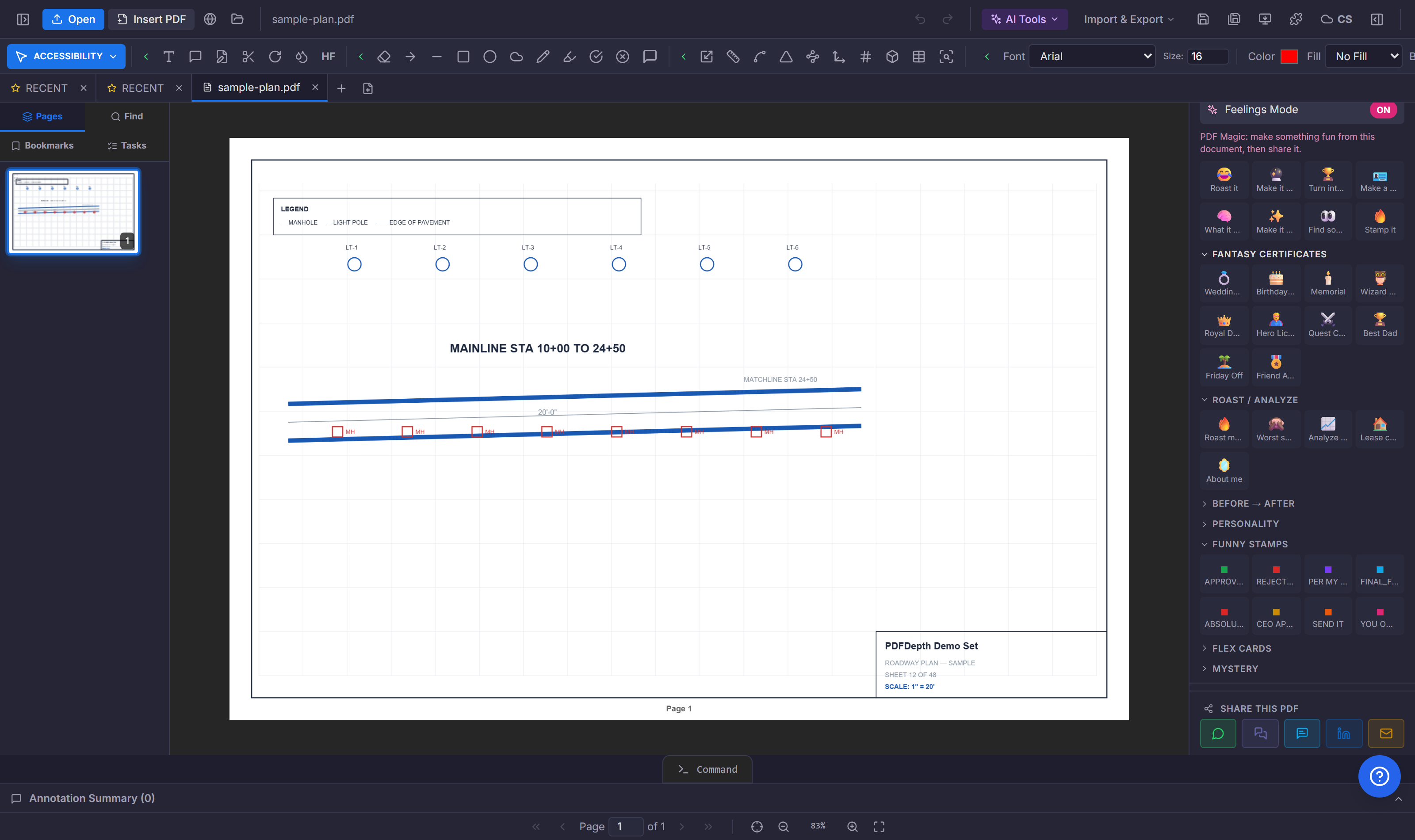
Tool Chest — style presets for any tool
Configure a tool once — stroke, fill, width, font — then "Save Current Style" captures the active tool and its styling as a named preset. Clicking a preset re-arms that tool with that exact style, so "red cloud for RFIs" or "yellow highlight at 40% opacity" becomes one click instead of a rebuild. Presets show a color swatch and the tool type, and delete on hover. They live in the workspace session — a chest of go-to styles while you work a sheet.
Calibration — the scale behind every number
The Calibration box shows the current page’s scale factors and the reference dimension they were set from (for example, a 20 ft known length). No calibration yet means a plain "not calibrated" note — set it with the Calibrate tool before trusting anything you measure. The unit selector switches how every measurement is displayed: inches, feet, centimeters, metres, or millimeters.
Measurements — this page’s takeoff list
Every measurement on the current page lists its type and formatted value. Clicking a row selects that measurement on the sheet — the fast way to find the area you measured an hour ago — and hovering reveals a delete that removes the measurement and its annotation together.
Selected Details — engineering properties of a shape
Select a closed area or perimeter measurement and the panel computes section properties from the calibrated geometry: perimeter, area, and aspect ratio, plus the centroid, both moments of inertia (Iₓ and I_y), the polar moment (J), and the radii of gyration (Rₓ, R_y). Values come out in the calibrated unit — useful when a footing outline or slab region needs a quick second-moment check without redrawing it in analysis software.
Doing it in PDFDepth
Right panel → Markup & Measure, then open the collapsible Tool Chest, Calibration, and Measurements boxes. Calibrate first, measure second, and export the quantities with Export Takeoff to Excel when the list is worth pricing.
Everything in this article runs in the live PDFDepth workspace — the same app the workflows above were verified against.
Key takeaways
- Save a tool’s style once; re-apply it from the Tool Chest in one click.
- Calibration is per page — the readout and unit selector live under Calibration.
- The Measurements list is per page too; click a row to find it on the sheet.
- A selected area or perimeter reports centroid, Iₓ/I_y, J, and radii of gyration in calibrated units.
Related questions
Yes — they flatten into the exported PDF, and the takeoff exports to Excel as rows of type, label, quantity, unit, and sheet.
Do it in PDFDepth
In the app: Right panel → Markup & Measure
Try it free — no signup, no upload
Related articles
Put it into practice
Everything above runs inside the PDFDepth workspace — free for 14 days, no credit card.
Start for Free