Inside the Workspace · Updated October 6, 2026
What is Image Editing Mode in PDFDepth?
Short answer
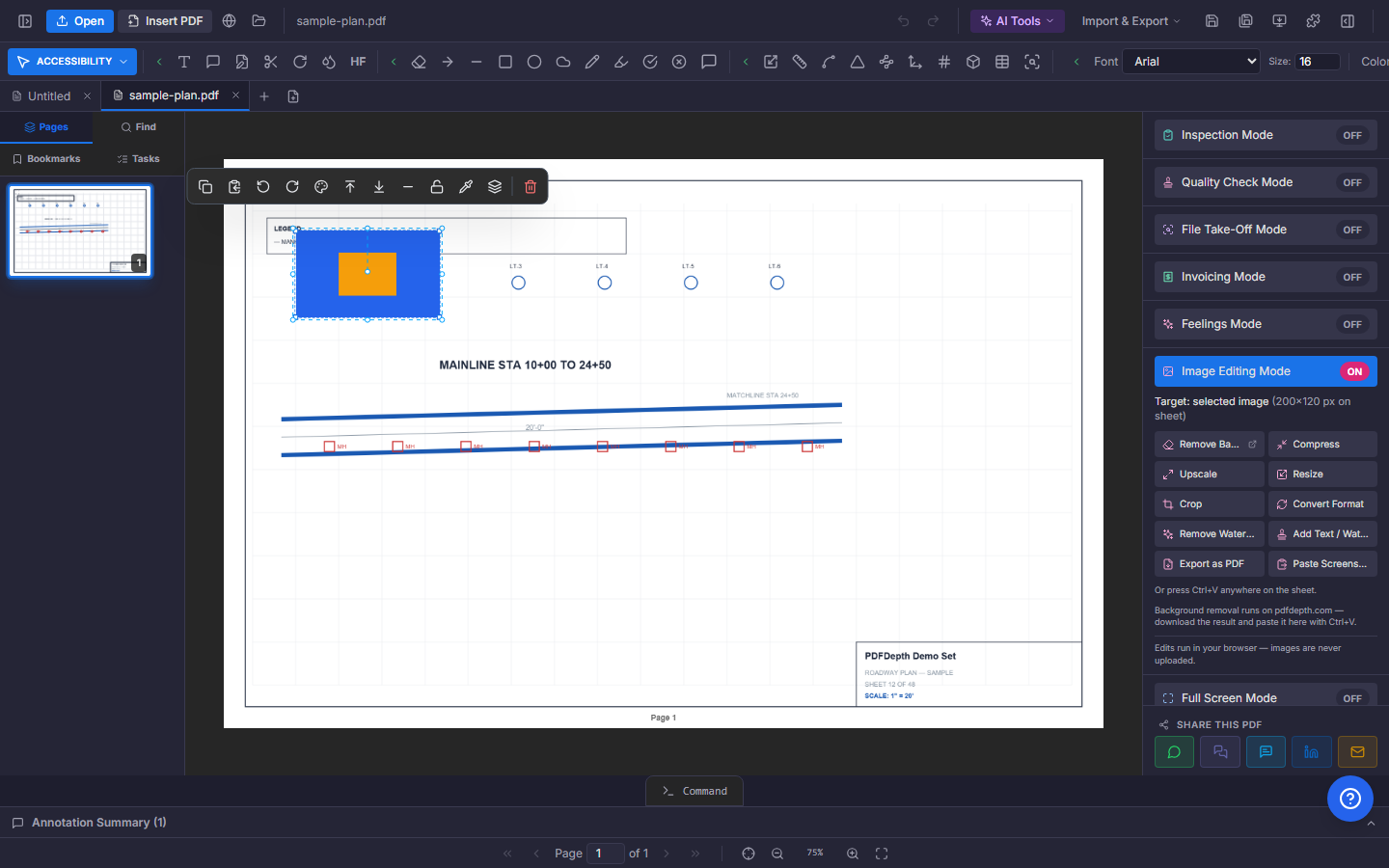
Image Editing Mode is a right-panel toggle that edits either a selected image on the sheet or the current page rendered as an image. Local tools — compress, upscale, resize, crop, format conversion, watermark removal, and text/image watermarking — run entirely in the browser, while an AI section (Gemini) handles region changes, adding or removing objects, background swaps, style transfers, and similar edits.
Pick a target: a placed image or the page itself
Select an image annotation and it becomes the target — its pixel size is shown in the panel. With nothing selected, the target is the current page rendered as an image, which is how you photo-edit a scan. Page edits flatten: the page is replaced by the edited image, so the panel warns when the page still has live text or vector linework, keeps an undo entry, and offers a "Revert last page edit" button that restores the pre-edit page.
The local toolbox — nothing uploaded
Three neighbours round out the panel: "Remove Background" opens the free remover on pdfdepth.com; "Export as PDF" turns the selected image (or page) into a PDF; and "Paste Screenshot" drops the clipboard onto the sheet — Ctrl+V works anywhere on the page. A placed image can also be recolored from its hover toolbar — the pipette remaps the image’s dominant colors, the same editor used when you cut a region and paste it as a transparent overlay.
- Compress — quality slider, JPEG or WebP out, before/after sizes.
- Upscale — 2× or 4× enlargement.
- Resize — exact pixel dimensions with aspect lock and percentage shortcuts.
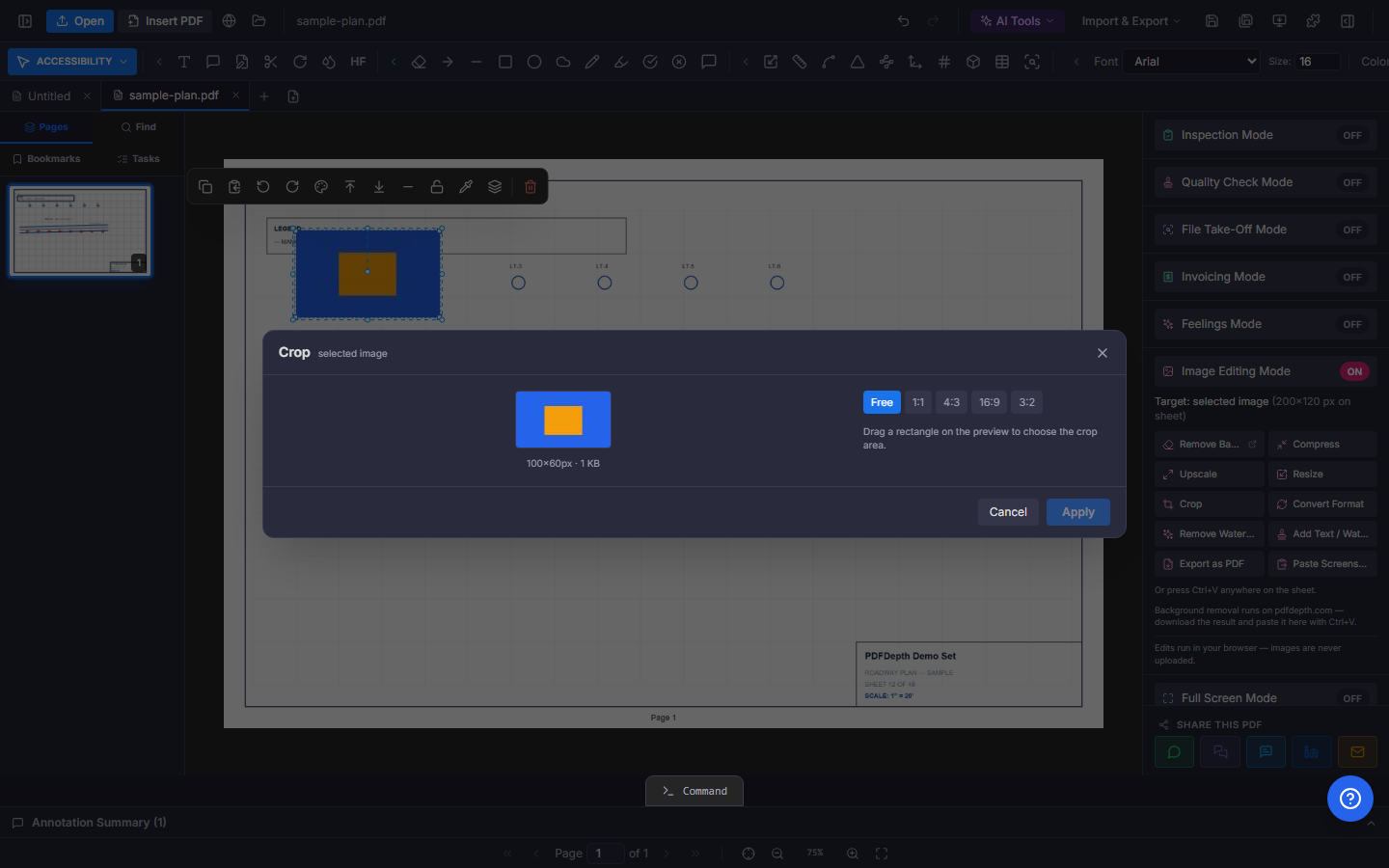
- Crop — drag a rectangle, free or locked to 1:1, 4:3, 16:9, or 3:2.
- Convert Format — PNG, JPEG, or WebP, with a background color for flattening transparency.
- Remove Watermark — drag boxes over the mark; the regions are inpainted.
- Add Text / Watermark — text or a logo image at nine positions, with size, color, and opacity.
AI edits via Gemini
An AI Edit section sends the target image to the Gemini image model — it needs your API key in Settings. The tools cover region edits on a marked area, adding or removing objects and people, replacing one thing with another, whole-image restyling, clothing and appearance changes, background swap or extension, blending up to three reference images, generative aspect-ratio expansion, designed text insertion (cards, flyers, certificates, social posts), and Magic Layer, which detects objects and lifts each into its own movable layer.
Doing it in PDFDepth
Right panel → Image Editing Mode. Click an image on the sheet to target it, or leave nothing selected to work on the page-as-image. Run a tool, check the preview, and Apply — annotation targets update in place with undo; page targets flatten with a warning and a one-click revert.
Everything in this article runs in the live PDFDepth workspace — the same app the workflows above were verified against.
Key takeaways
- Two targets: a selected image annotation, or the current page rendered as an image.
- Compress, upscale, resize, crop, convert, watermark removal, and watermarking all run locally in the browser.
- Page edits flatten the page — the panel warns when live text/vectors would be lost and offers a revert.
- AI section (Gemini key required) does object-level edits: remove/add/replace, restyle, background, aspect expansion.
Related questions
The local toolbox runs entirely in your browser. AI edits send the image to the Gemini image model, and background removal runs in the free pdfdepth.com tool — both are labelled as such in the panel.
Do it in PDFDepth
In the app: Right panel → Image Editing Mode
Try it free — no signup, no upload
Related articles
Put it into practice
Everything above runs inside the PDFDepth workspace — free for 14 days, no credit card.
Start for Free