Inside the Workspace · Updated October 6, 2026
How do I lift objects out of an image into separate editable layers?
Short answer
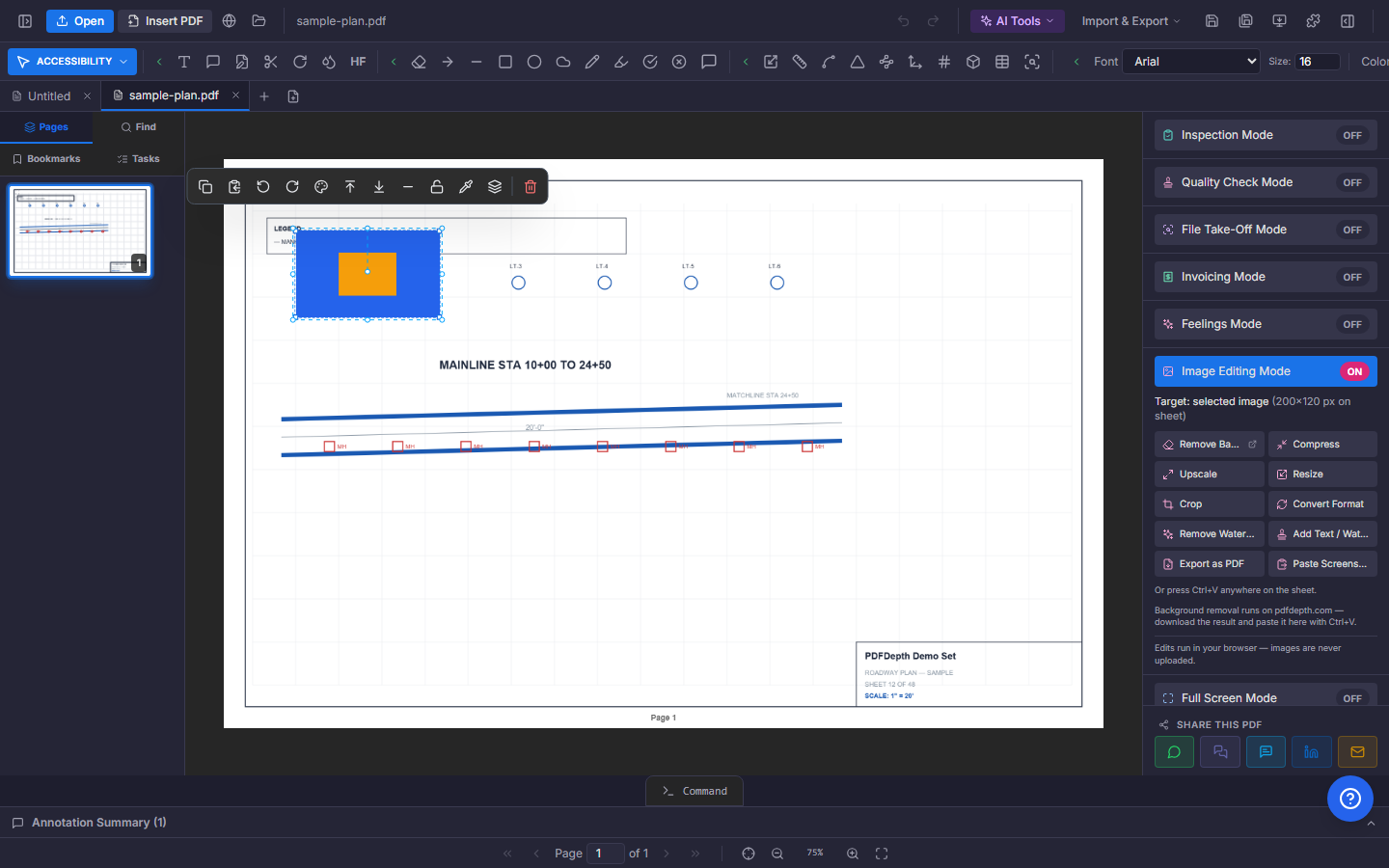
In Image Editing Mode, Magic Layer sends an image — a placed picture or the rendered page — to the model, which returns labeled bounding boxes for each distinct object it finds; pick the ones you want and each is cropped into its own image annotation sitting exactly over its original spot, ready to drag, restyle, or delete as an independent layer.
Detect, pick, lift
- Run Detect objects on the selected image or the current page — the model returns up to a dozen distinct objects with labels and bounding boxes.
- The preview draws a labeled, color-coded box per object; click a box to include or exclude it.
- Apply, and each chosen object is cropped out and placed as its own image layer at the exact position it occupied — then drag it anywhere.
The clean plate problem
Moving an object usually exposes the problem underneath: the object still sitting in the base image. The "Reconstruct base" option runs a second pass that removes the chosen objects from the source and repaints the background, so the lifted layers move over a plate that looks like they were never there. Skip it when you only need the crops.
Layers are just annotations
Each lifted object is an ordinary image annotation: drag it, resize it, restyle it, re-edit its colors in the overlay editor, or delete it — the layer model is the annotation model, so nothing about the result is locked to the tool that made it.
Honest requirements and limits
Detection and the optional reconstruct pass send the image to the model — it needs a Gemini API key configured in Settings, and the image leaves the device for those calls. Detection lists at most twelve objects and can miss ambiguous ones; boxes you exclude simply are not lifted.
Doing it in PDFDepth
Right panel → Image Editing Mode → Magic Layer, on a selected image or the page. Detect, untick anything you do not want, decide whether the base needs reconstructing, and apply — the objects land as draggable layers on the sheet.
Everything in this article runs in the live PDFDepth workspace — the same app the workflows above were verified against.
Key takeaways
- Detect objects returns labeled boxes for each distinct object in an image or page — pick what to lift.
- Each chosen object crops into its own movable layer at its exact original position.
- Reconstruct base repaints the background so moved objects leave no duplicate behind.
- Layers are normal image annotations — drag, restyle, re-edit, or delete freely.
Related questions
Both — run it on the rendered page or on an image annotation you selected.
Do it in PDFDepth
In the app: Right panel → Image Editing Mode → Magic Layer
Try it free — no signup, no upload
Related articles
Put it into practice
Everything above runs inside the PDFDepth workspace — free for 14 days, no credit card.
Start for Free